What’s the Difference Between an SSD and a Hard Drive?
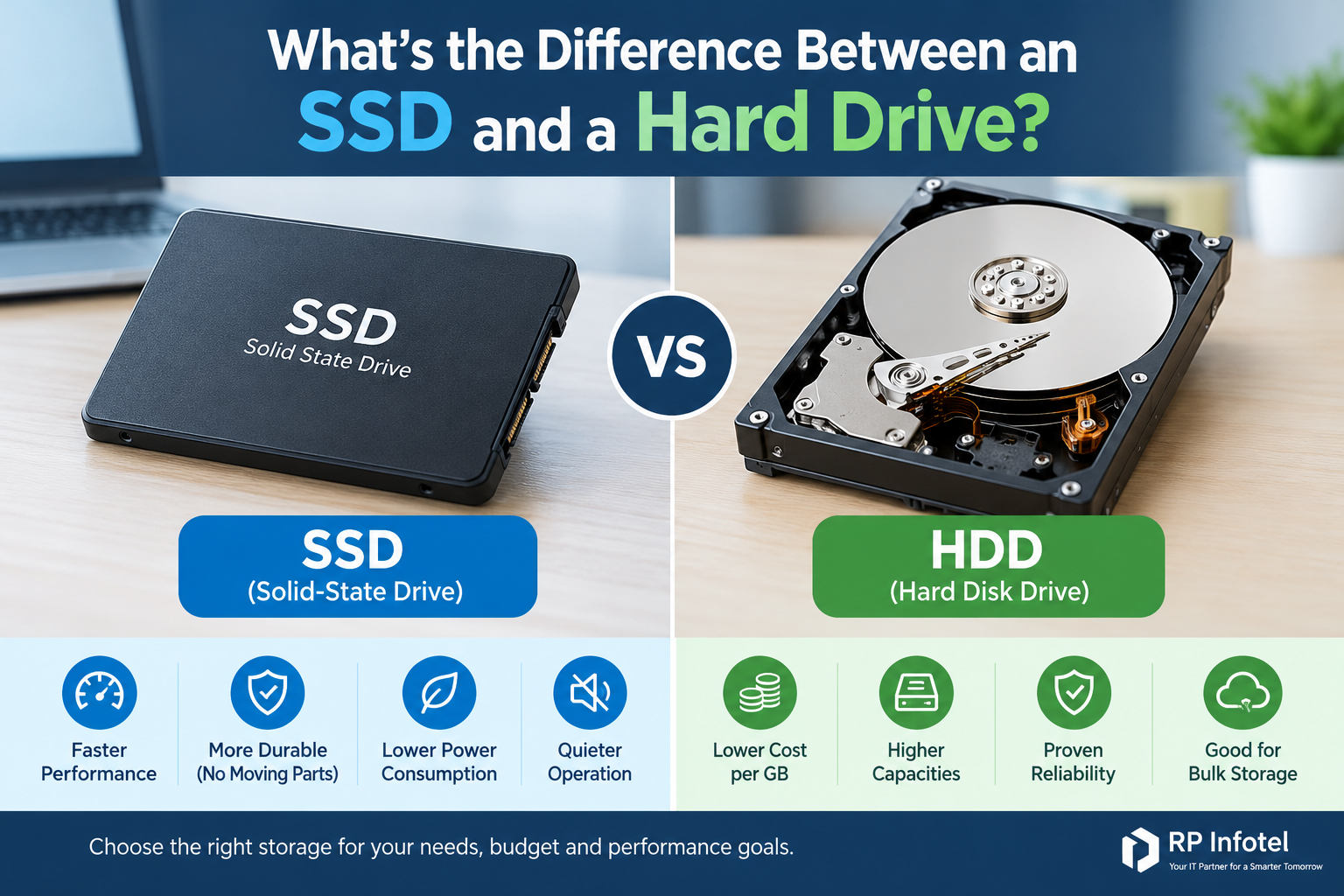
What’s the Difference Between an SSD and a Hard Drive?
Every time you switch on a computer, open a spreadsheet, or search for a file, your storage drive is at work. It holds your operating system, applications, and data, and it strongly affects how quickly a computer starts and how smoothly it runs. A slow drive can make a modern processor feel sluggish.
Today, two main technologies dominate: the Solid-State Drive (SSD) and the Hard Disk Drive (HDD). The SSD vs HDD question matters to a student buying a laptop and to an IT manager planning a server refresh. The right answer depends on your budget, performance needs, and how much data you need to store.
This guide explains how each drive works, compares them side by side, and helps you decide which one suits your needs.
What Is an SSD (Solid-State Drive)?
An SSD stores data on NAND flash memory chips. These are the same general type of memory used in USB pen drives and memory cards, but built for much higher speed and endurance. A controller chip manages where data is written and read.
Because an SSD has no spinning disks or moving read/write heads, it has no mechanical parts. That is why it is silent, resists bumps better, and responds almost instantly.
Common SSD Types and Form Factors
- SATA SSDs: These use the same SATA connection as older hard drives, usually in a 2.5-inch case. They are an easy upgrade for older laptops and desktops.
- NVMe M.2 SSDs: These are small, stick-shaped drives that plug into an M.2 slot on the motherboard. They use the NVMe protocol over PCI Express (PCIe), which allows much higher speeds than SATA. NVMe stands for Non-Volatile Memory Express.
SSD Storage Benefits
- Fast boot times and application loading: Systems often start in seconds rather than minutes.
- Quick file transfers: Large copies and installations finish sooner.
- Durability: With no moving parts, SSDs tolerate vibration and minor shocks better than HDDs.
- Lower power consumption and heat: This helps laptop battery life and reduces cooling demands.
- Silent operation.
SSD Disadvantages
- Higher cost per gigabyte: In many comparisons, SSDs cost more per unit of capacity, especially at higher capacities.
- Capacity considerations: Very large SSDs are available but can be expensive compared with equivalent HDDs.
- Finite write endurance: Flash cells wear out after many write cycles, though normal use rarely exhausts a quality drive.
What Is an HDD (Hard Disk Drive)?
A hard disk drive stores data magnetically on rapidly spinning discs called platters. A read/write head on a moving arm hovers just above each platter, reading and writing data as the platters rotate. This mechanical design has been refined over decades.
Common HDD Form Factors
- 3.5-inch drives: Used in desktops, servers, NAS devices, and CCTV recorders. They offer the highest capacities.
- 2.5-inch drives: Used in laptops and portable external drives.
Hard Disk Drive Advantages and Disadvantages
Advantages:
- Economical high-capacity storage, with a low cost per gigabyte.
- Very large drives are widely available.
- Suitable for bulk data such as archives, backups, and recorded video.
Disadvantages:
- Mechanical wear: Spinning platters and moving heads can wear out over time.
- Noise and vibration: You may hear spinning and clicking, especially in multi-drive systems.
- Slower access times: The head must physically move to find data.
- Vulnerability to shock: A drop or bump while the drive is active can cause damage.
SSD vs HDD: Key Differences Compared
The table below summarizes the main differences. Figures are approximate and vary by drive model, interface, and workload.
FeatureSSDHDDStorage technologyNAND flash memory, no moving partsMagnetic spinning platters with moving headsTypical speedSATA SSDs: roughly 500–550 MB/s sequential. NVMe SSDs: often several times faster.Many consumer HDDs: roughly 100–200 MB/s sequential under suitable conditionsLatency (access time)Very low, typically measured in microsecondsHigher, typically measured in millisecondsBoot and app loadingTypically much fasterTypically slowerCost per GBGenerally higherGenerally lowerAvailable capacitiesWidely available from 128GB to several TBWidely available up to many TBDurabilityBetter shock resistance, but finite write enduranceMore sensitive to drops and vibration, with mechanical wearPower consumptionGenerally lowerGenerally higherNoise and heatSilent, usually coolerAudible, produces more heatPortabilityExcellent for laptops and portable drivesFine, but more fragile in motionBest use casesOperating systems, active applications, databases, virtual machinesArchives, backups, CCTV storage, media libraries
Actual results depend on the specific drive, the connection interface, file sizes, and the workload. A fast HDD can outperform a very low-end SSD in some sequential tasks, but an SSD generally wins on responsiveness.
Which Is Faster: SSD or HDD?
In terms of SSD vs HDD performance, two kinds of speed matter.
Sequential speed measures how quickly a drive reads or writes one large, continuous file, such as copying a video. Random access performance measures how quickly it handles many small requests scattered across the drive, which is what an operating system does constantly.
An HDD’s head must physically move to each location, which takes time. An SSD retrieves data electronically with minimal delay, so the gap is largest in random access.
This matters in everyday business tasks:
- Operating system startup: Windows loads thousands of small files at boot, which suits SSDs.
- Multitasking: Switching between apps involves constant small reads and writes.
- Software launches: Large applications start noticeably quicker.
- File searches: Indexing and searching are more responsive.
- Database workloads: Many small, simultaneous requests favour low latency.
- Virtual machines: Several systems sharing one drive create heavy random access demand.
A Practical Example
Imagine two comparable office desktops with the same processor and memory. One uses an HDD and the other an SSD. At 9 AM, an accounts employee switches on the machine, opens the email client, an accounting package, and several spreadsheets.
On the HDD system, each application competes for the drive, and the employee may wait while the computer catches up. On the SSD system, the same programs load with far less waiting. The processor is no different. The drive simply stopped being the bottleneck. Across a team and a working year, those small waits add up.
SSD vs HDD: Which Is More Reliable?
Neither type is immune to failure. They fail in different ways.
HDDs have moving parts. Bearings, motors, and heads can wear out, and physical shock can damage them, especially while running. Failures are sometimes preceded by clicking sounds or slowdowns, though not always.
SSDs have no moving parts but have finite write endurance, because flash cells tolerate a limited number of writes. Manufacturers specify this using ratings such as TBW (terabytes written). For typical office use, endurance is rarely a problem, but heavy write workloads need drives designed for them. SSDs can also fail from controller or firmware problems, sometimes without much warning.
Reliability depends on drive quality, operating temperature, workload, and age. Neither “SSDs never fail” nor “HDDs are always unreliable” is true.
RAID Is Not a Backup
RAID combines multiple drives so that a system can keep running if one fails. That is redundancy, not backup. RAID will not protect you from accidental deletion, ransomware, file corruption, fire, theft, or a failed controller. A proper strategy keeps separate copies of important data, ideally including one offsite or offline, and tests restores regularly.
Which Is Better for Business and Enterprise IT?
For HDD vs SSD for business, the answer depends on the workload.
- Office desktops and employee laptops: SSDs are generally the best storage for business computers. Faster startup and application loading improve daily productivity.
- Application and database servers: SSDs are usually preferred because these workloads involve many small, simultaneous reads and writes.
- Virtual machines and virtualization hosts: SSDs, often NVMe, help many virtual machines run smoothly on shared storage.
- CCTV archives and large media libraries: HDDs are cost-effective for large volumes of sequentially written video. Drives designed for surveillance or continuous operation are available.
- Backup repositories and long-term retention: HDDs offer economical capacity for data that is written once and read rarely.
- NAS and enterprise storage: Many environments use a mix, with SSDs for performance-sensitive data (or as cache) and HDDs for bulk capacity.
When planning enterprise storage solutions, consider more than the price tag:
- Performance: What speed and latency does the workload need?
- Endurance: How much data will be written daily?
- Capacity: How much will you need now and in two to three years?
- Redundancy: What happens if a drive fails?
- Compatibility: Do the drives suit your servers, controllers, and NAS devices?
- Recovery requirements: How quickly must data be restored?
- Total cost of ownership: Include power, cooling, replacement, and downtime, not just purchase price.
RP Infotel’s website lists networking and server room setup among its services, which are areas where storage planning naturally comes up.
SSD vs HDD: Which One Should You Choose?
- Students and everyday home users: An SSD makes a computer feel faster for browsing, study, and streaming. A 256GB or 512GB SSD is often enough, and cloud or external storage can cover the rest.
- Business professionals: Choose an SSD for responsiveness with email, documents, video calls, and multitasking.
- Gamers and content creators: Use an NVMe SSD for the operating system, games, and active projects. An HDD can store finished projects and archives.
- IT administrators and developers: SSDs suit operating systems, databases, containers, and virtual machines. HDDs fit backups and logs.
- Businesses storing large volumes of data: Use HDDs for bulk capacity, and consider SSDs for the frequently accessed portion.
A Short Decision Guide
- Need speed and responsiveness? Choose an SSD.
- Need maximum capacity at the lowest cost? Choose an HDD.
- Need both? Combine them. Use an SSD for the operating system and applications, and an HDD for bulk files, archives, or backups.
Can You Upgrade From an HDD to an SSD?
For many laptops and desktops, yes. An SSD upgrade is one of the most noticeable improvements you can make to an older computer. The general process is:
- Check compatibility. Find out whether your device uses a 2.5-inch SATA connection, an M.2 slot, or both.
- Choose capacity and form factor. Pick an SSD that fits and offers enough space for your data.
- Back up important files. Do this before any changes.
- Clone or reinstall. Either clone the existing drive to the SSD or perform a clean installation of the operating system.
- Install the drive and test. Fit the SSD and confirm the system boots correctly.
- Verify. Check performance and confirm all your data is accessible.
Some situations need extra care. Many modern laptops are difficult to open, and disassembly can risk damage or void warranties. Encrypted drives need correct handling during cloning. Operating system licensing may need attention after a drive change. If you are unsure, ask a qualified IT professional, especially for business computers holding important data.
Frequently Asked Questions
1. Is an SSD better than an HDD?
For speed, responsiveness, quiet operation, and shock resistance, an SSD is generally better. For low-cost, high-capacity storage, an HDD still has the advantage. The better choice depends on your budget, performance needs, and how much data you need to store.
2. How much faster is an SSD than an HDD?
It varies. A SATA SSD may reach roughly 500–550 MB/s in sequential transfers, compared with roughly 100–200 MB/s for many consumer HDDs. NVMe SSDs can be much faster. The difference in everyday responsiveness is often larger than the raw numbers suggest.
3. Do SSDs last longer than hard drives?
Not necessarily. SSDs have no moving parts but have limited write endurance, while HDDs suffer mechanical wear. Lifespan depends on drive quality, workload, temperature, and age. Either type can fail, so regular backups matter regardless of which you use.
4. Is an HDD better for storing large files?
HDDs are often more cost-effective for storing large amounts of data, such as video archives, backups, and media libraries. If you need to edit or access large files quickly, an SSD performs better. Many people use an SSD for active work and an HDD for storage.
5. Can I use an SSD and an HDD together?
Yes. Many desktops and some laptops support both. A common setup places the operating system and applications on the SSD and keeps bulk data, archives, or backups on the HDD. This balances speed and cost effectively.
6. Is a 512GB SSD better than a 1TB HDD?
It depends on your priorities. The SSD will feel much faster for startup and applications, while the HDD offers more space for the money. If you need the space, consider a larger SSD, or combine a smaller SSD with an external or secondary drive.
7. Should businesses use SSDs in their servers?
Often yes, particularly for operating systems, databases, virtual machines, and other performance-sensitive workloads. HDDs may still suit backup and archive tiers. Evaluate endurance ratings, redundancy, compatibility, and total cost of ownership before deciding.
8. Does upgrading to an SSD make an old computer faster?
Often significantly, especially for startup and application loading. However, an SSD cannot fix every limitation. A computer with very little memory or an outdated processor may still feel slow. Check that the hardware and operating system are still suitable.
Conclusion
The SSD vs HDD choice comes down to what you value most. SSDs are generally the better choice for speed and responsiveness, with faster startups, quicker application loading, lower power use, and better shock resistance. HDDs remain useful where economical high-capacity storage matters, such as backups, archives, and surveillance footage.
For many users and businesses, the best approach is a combination: an SSD for the operating system and active data, and an HDD for bulk storage. Whatever you choose, pair it with a sound backup strategy.
If you are planning storage upgrades or reviewing your IT infrastructure, visit RP Infotel to explore its IT services, or contact the team to discuss your requirements.
Recent Blogs


Our Partner's


.jpg)